STATISTICS with R
Installing R and RStudio
There are several packages and programming languages that are used for performing statistical analysis and research. The most widely used programming language by statisticians for research and analysis is R. The programming language R is written by statisticians who are rigorous in and familiar with the statistical concepts and analysis.
Because R is free and powerful, it is increasing in adoption by many students, researchers, and companies. Therefore, learning R is a very valuable tool to further your opportunities in research and in the professional settings, such as public health, pharmaceutical companies, and research labs.
The best way to write R code for statistical analysis is to do so in an advanced editor that provides a notebook for writing the code and some windows to produce the outputs, such as the analysis results and visualizations. One of the most popular programs to write R code in is RStudio, developed by Posit. In this chapter, we learn how to set up the environment to start programming and data analysis in R. For this purpose, we need to install the R language first and then the RStudio coding environment. We will learn more about the RStudio environment in the next part of the chapter, RStudio Environment.
Installing R
The R statistical programming language can be downloaded from r-project official portal. On the left panel, under Download, click on CRAN . A page will load where you are given the option to download R from the server most (geographically) convenient for you.
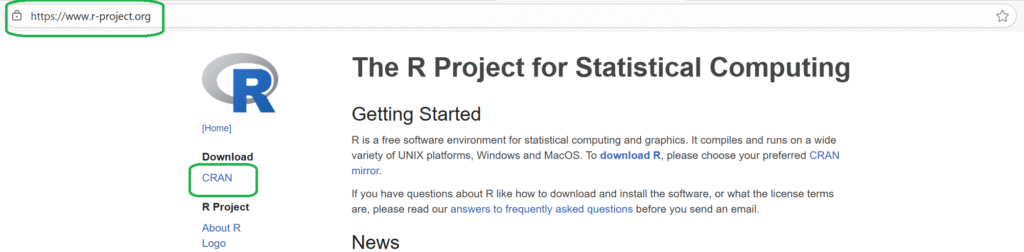
Once you select the server which hosts the R language, you need to select the version for your operating system, such as Linux, Mac, or Windows.

If your computer’s operating system (OS) is Microsoft Windows, then click on “Download R for Windows” and in the newly opened page click on “base” or on “install R for the first time.”
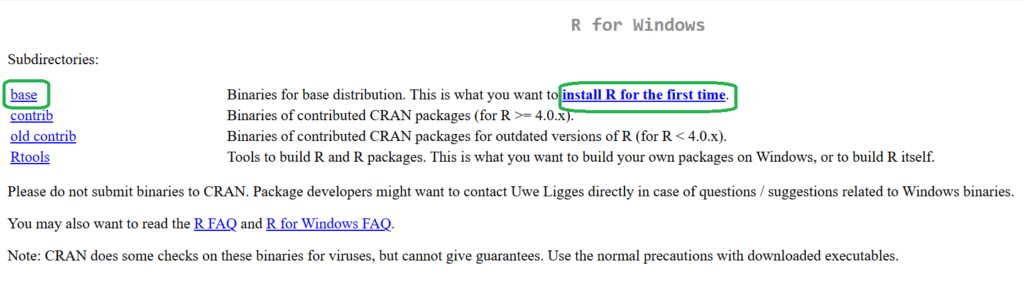
On the new page, the final step is to click on “Download R x. for Windows.” (the latest version is usually shown).

Once the R programming language is downloaded, double click on the downloaded file and proceed with the default installation options.
Installing R Studio
The preferred way to use R for most users is to write the code in an editor. When you download R, it comes prebuilt with an editor, but it is very limited compared to a full IDE. A more advanced and more user-friendly editor to type in your code (and view output and plots) is RStudio. The RStudio integrated development environment (IDE) can be download from the official Posit portal from here.
In the newly opened page, scroll down to the section Direct Download (Open Source). RStudio is available for a variety of operating systems, including Windows, macOS, and Linux distributions.
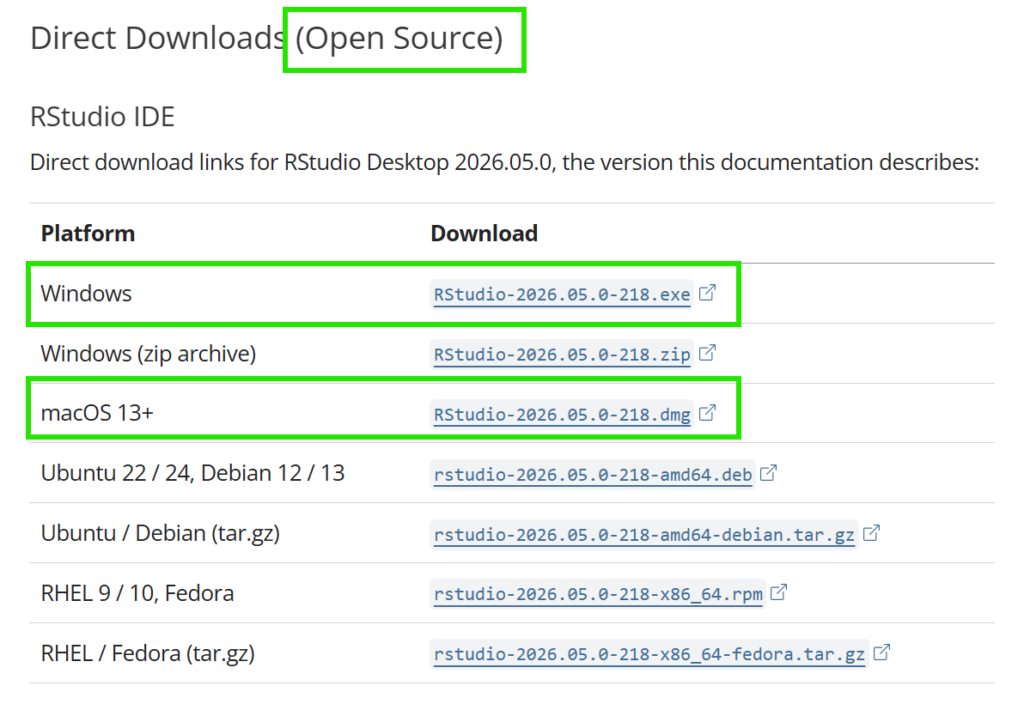
Once the RStudio program is downloaded, run the downloaded file and follow through the installation steps. Open RStudio for the first time. On Windows, RStudio automatically finds the path to the R language application which you installed in step one, else it will show a popup window to select the installed R versions. In this case, choose the version of R you downloaded and set it as the default R program. We will learn more about the RStudio environment in the next part of the chapter, RStudio Environment.
Project Folder Structure
It is good practice in programming to place all related files in the same folder / project. One reason is that the code can automatically find the path of the other files (e.g., data, images, or other code files) without the need to explicitly write the path to those files. In statistical analysis, we mostly deal with data files. If we place the R code in the same folder as the data file, then by opening the R file from within the folder, the R program can access the data files easily.